Student guidance to Studentweb
1. Every semester you need to pass courses equal to 30 ECTS. Find out which courses you need to take this semester by looking at the curriculum for your programme. If you can choose between several electives within a course, you need to decide which one your choosing first. Make sure your electives and courses don’t overlap in your schedule.
2. Log on to Studentweb
- a. Either with your KHiO username and password, ie Feide.
- b. Or with ID-porten – a safe method of logging on using electronic ID from MinID, Buypass or Commfides. For this you need Norwegian personal number or D-number.
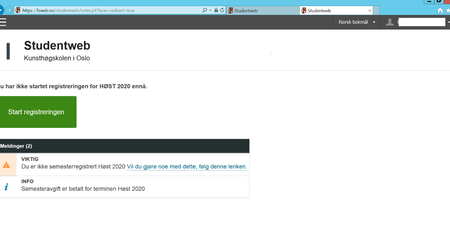
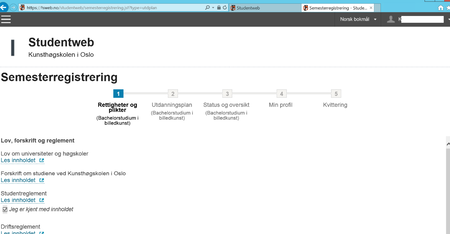
4. When you start the registration, you will see a step-by-step row, where you will find the step including your Study plan and courses.
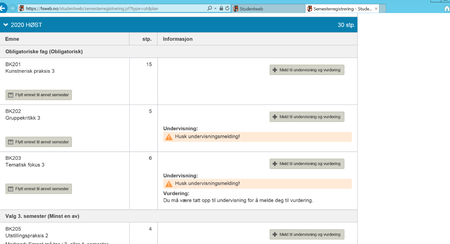
5. You will be taken to the study plan for the current semester. For many programmes there will already be courses in your study plan. Sign up or apply for a place in the class. You will be taken to the study plan for the current semester. For many programmes there will already be courses in your study plan. Sign up or apply for a place in the class. *Remember that certain courses (such as BK201 Kunsterisk praksis 3) it is enough to simply sign up for the course, whilst in others (such as BK202 Gruppekritikk 3) you need to apply for place in groups and include 3/5 preferences.
6. If you are choosing other courses, scroll down until you find the course group where you can choose that course. Click “Choose” for the course you would like to add to your study plan.
Can’t find the course you’d like to apply for? See if you can find it under a different semester.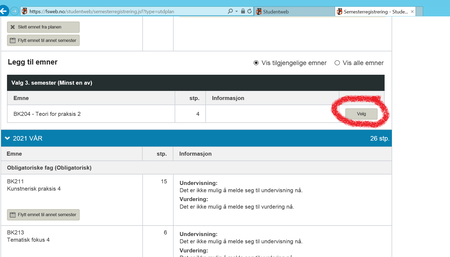
7. After you’ve clicked “Next” you will be taken to a page that shows “Status and overview”. Here you will see which courses you have taken so far in your programme, and what you are now registered for. Make sure that you have signed up for the correct courses and that you are signed up to courses that amount to 30 ECTS for the current semester.
8. You’ll then be taken to your profile. Remember to check that the information is correct, and make sure to update it if anything has changed. Click “Complete”.
- If you log on to Studentweb again later in the semester you can go directly to the study plan via the menu and clicking “Studies”.
If you experience that the “Next” button is missing or isn’t green you need to make sure that you have done everything correctly. If it still isn’t working it may help to change to a different browser (especially Safari), or logging out and back in to Studentweb.